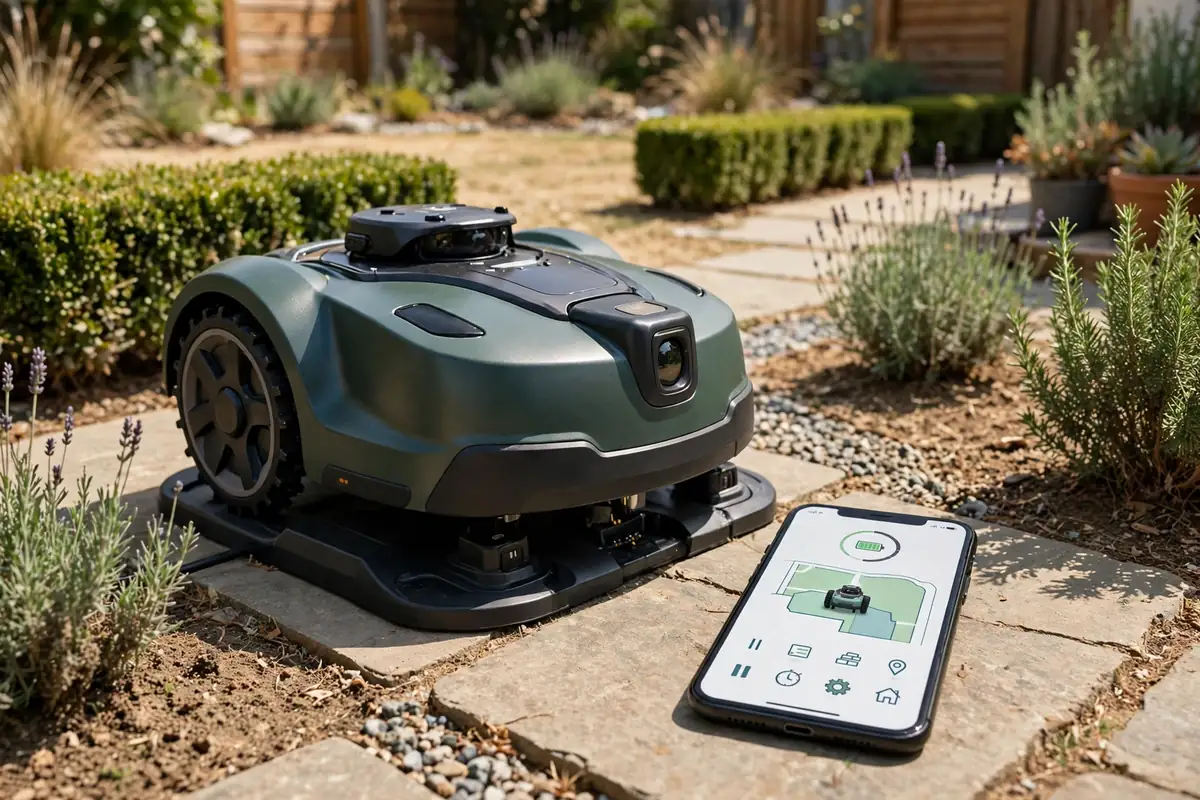
Learning how to update robot mower firmware safely is mostly about preparation and patience. In short: charge the mower, check its connection, update the companion app first, then install the firmware through the manufacturer’s official app or on-screen menu — and leave it alone until it restarts and confirms the new version. Do not switch it off, move it, or close the app while it is running.
Firmware is the built-in software that controls how your mower navigates, cuts, charges, and responds to safety sensors. A robot mower software update can fix a fault or improve navigation, but it can also change menus and settings, so read the update notes first. This guide does not replace your manual: always check it for your exact model.
How to Update Robot Mower Firmware: The Safe Process at a Glance
Most robotic mower firmware update routines follow the same order:
- Read the update notes and check the update is for your exact model.
- Charge the mower to the level required in the manual.
- Check the Wi-Fi, Bluetooth, or mobile connection.
- Update the companion app first, if an update is available.
- Start the firmware update from the official app or mower menu only.
- Wait for the mower to download, install, and restart.
- Check the version number and test the mower with a short supervised run.
If any step does not match your manual, stop and check the manufacturer’s official support pages. Do not use files, apps, or instructions from unofficial sources.
Before You Start: Preparation Checklist
Good preparation prevents most robot mower update problems. Before you tap “update”:
- Confirm the model and current version in the app or mower settings, and write them down.
- Read the manual’s update section for how long an update takes and what to do if one stops.
- Use the official app only, from your phone’s official app store.
- Charge your phone, so it does not break the connection mid-update.
- Pick a dry, calm time when you have time to wait.
- Keep children and pets away; the mower may move, beep, or restart.
- Note your settings — schedule, cutting height, zones, and no-go areas — as some updates reset them. Know your PIN, password, or login before you start.
Battery and Connection Checks
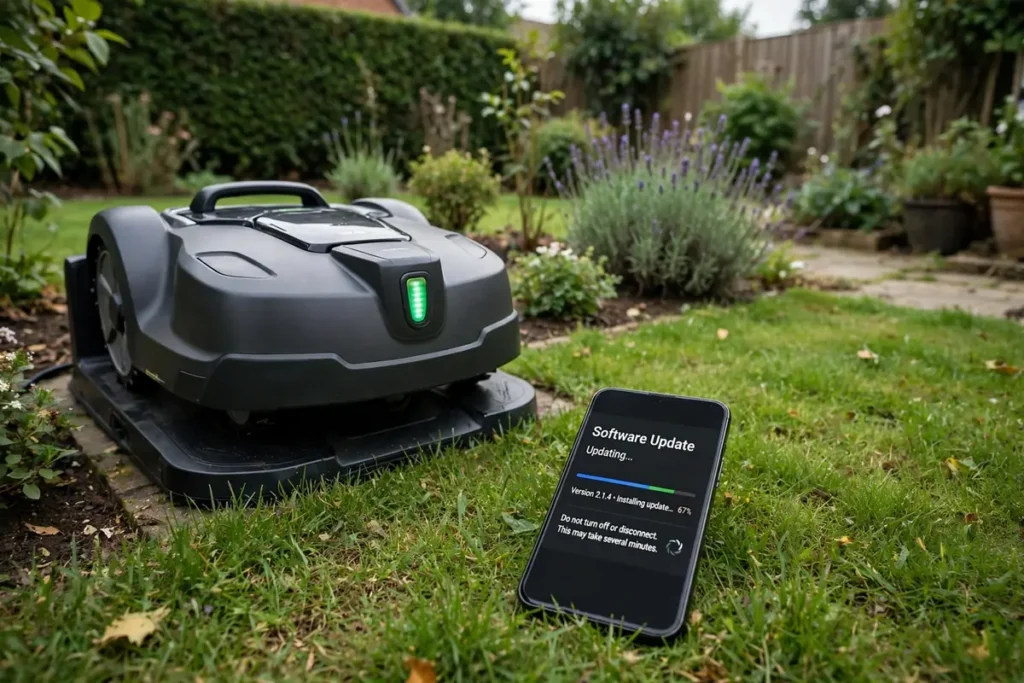
Battery and connection problems cause many failed updates.
Check the Battery First
Most manufacturers ask for a well-charged battery before a mower firmware installation; the exact level varies by model, so check your manual. Leave the mower on its dock until it reaches that level, and keep it there during the update. Do not start on a low battery or a battery warning, and do not remove the battery, disconnect the dock, or unplug the station during an update: losing power while firmware is being written can leave a mower unable to start.
Check Wi-Fi, Bluetooth, and Mobile Signal
Some mowers use Wi-Fi, some use Bluetooth through your phone, and some use a built-in mobile connection — check the manual for yours. For Wi-Fi, make sure the mower is within reliable range. For Bluetooth, keep your phone close and Bluetooth on, and do not switch apps or let the phone lock if the manual warns against it. For mobile, check the mower has signal where it is parked. Do not start a download on a weak connection.
Robot Mower App Update: Do This Before the Firmware
A robot mower app update is different from a firmware update, and the order matters: the app is on your phone, firmware is inside the mower, and new firmware may need a newer app version, so update the app first.
Check your phone’s official app store for an update to the companion app and install it. Then open the app, sign in if needed, and check that it still connects to your mower and shows the correct model and version. If it will not connect, fix that before you touch the firmware: restart the phone, check Bluetooth and Wi-Fi permissions, and sign in again. Do not use an older app version, or a different app that claims to work with your mower.
How to Update Robot Mower Firmware Step by Step
The exact screens differ between brands, but the safe sequence is usually the same.
Step 1: Park the Mower on Its Dock
Place the mower on its charging dock, with the dock powered on and the mower switched on as the manual directs. It should be clean and dry, with nothing blocking its wheels or sensors. Switch it off before cleaning. Never reach under it while it is switched on, and keep hands away from the blades.
Step 2: Open the Official App and Check the Update
Open the official companion app, or use the mower’s own display if your model updates without an app. Go to settings or mower information and look for a software, firmware, or system update option. Check the details — model name, current version, and new version — and stop if they do not match your model. Do not install an update meant for a different model, or a file you downloaded yourself.
Step 3: Start the Update and Wait
Tap to start, then wait. The mower may download the update, install it, then restart, which can take several minutes. It may beep, flash lights, or show a progress bar; that is normal if the manual says to expect it.
During the update, do not switch the mower off or press stop unless the manual tells you to, lift or move it, or unplug the dock. Do not close the app, switch the phone off, or move the phone out of range. If progress does not change for a long time, check the manual for how long an update should take, and wait for that long.
Step 4: Let the Mower Restart
When the install finishes, the mower should restart on its own. Let it finish starting up before you touch it; it may take a minute or two to reconnect to the app and dock.
After the Update: Check the Version and Test the Mower
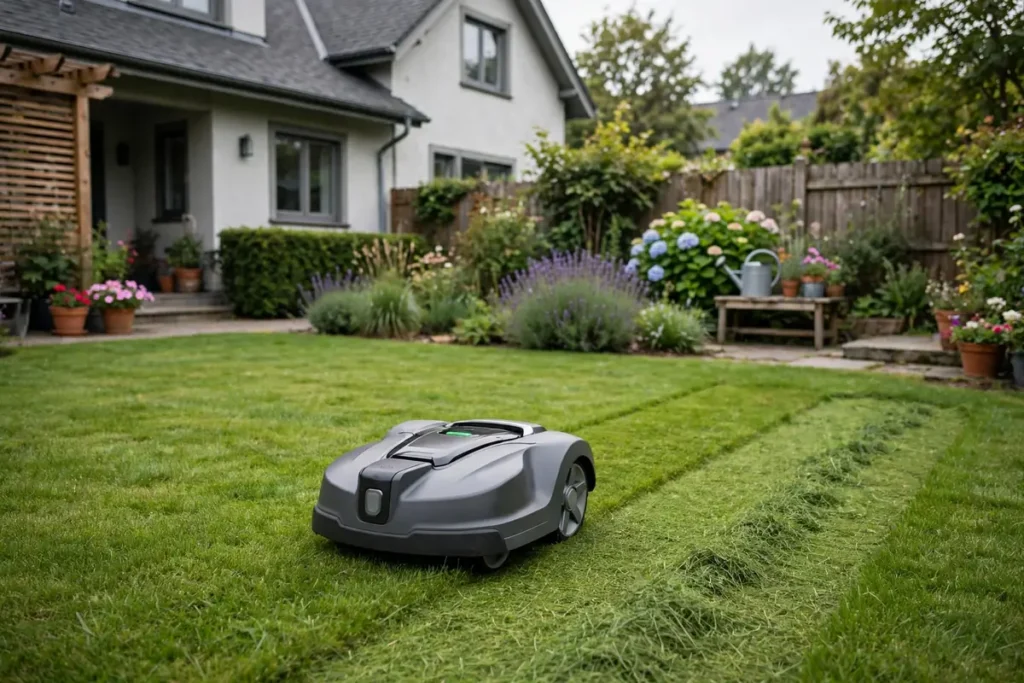
Do not assume the update worked just because the mower restarted. Confirm the version number in the app or mower menu against the update notes and the version you wrote down before you started; if it still shows the old version, follow the recovery steps below. Then check your settings — schedule, cutting height, zones, and no-go areas — restore anything that has changed, and check that safety settings such as PIN protection and lift sensors are still on. Do not bypass a safety feature if an update has changed how it behaves. Finally, run a short supervised test while you stay nearby, checking that it starts, cuts, avoids boundaries and no-go areas, and returns to the dock. If anything behaves differently, stop it as the manual directs and contact support.
Robot Mower Update Problems and Recovery Steps
Even a well-prepared update can stall. Work through these problems calmly, checking your manual at each stage.
| Problem | What to check first | What to try next |
|---|---|---|
| No update is shown | Model and version are correct; app is up to date | Refresh the app and restart the phone and mower |
| Download stalls | Signal is stable | Move the phone closer, then retry |
| Update stops part-way | Mower is on the dock and powered | Wait as the manual directs, then follow its recovery steps |
| Mower will not restart | Dock has power; mower is seated correctly | Leave it charging, then restart only as the manual directs |
| Version has not changed | Update completed or reported an error | Retry once if allowed, then contact support |
| Settings or map are missing | Settings were noted beforehand | Restore them from your notes |
| App will not connect | App is latest; phone permissions are on | Sign in again and restart the phone |
If the Update Fails or the Mower Will Not Start
If the update fails, the app reports an error, or the mower will not start afterwards, do not keep retrying: repeated attempts can make recovery harder. Leave it on the dock and connected to power, as the manual directs. Check the error message or light pattern in the manual or official support pages, and write down the exact message, model, and version numbers — support will ask for them.
Some manuals describe a safe restart or reset for this situation; follow those instructions exactly. Do not remove the battery, open the mower, or install firmware from another source, and do not use unofficial firmware or instructions that tell you to bypass a safety check — those routes can void a warranty, damage the mower, or leave it unsafe. If the manual’s recovery steps do not work, contact support before trying anything else, and do so too if the update fails more than once, the mower will not restart, or it behaves unsafely.
Conclusion
A safe robot mower software update is a slow, careful job, not a quick tap-and-forget task. Charge the mower, check the connection, update the app first, and install firmware only through the official app or mower menu. Wait for the download, install, and restart to finish, then check the version, review your settings, and test the mower while you are nearby. If an update stalls or fails, stop, check the manual, and follow its recovery steps. Do not switch it off mid-update, use unofficial firmware, or bypass a safety feature.
Frequently Asked Questions
How do I know if my robot mower needs a firmware update?
Check the official app or mower settings for an update notice, and compare the version with the latest version in the manufacturer’s official support material for your exact model. If none is shown, your mower may already be up to date.
Can I update robot mower firmware without Wi-Fi?
It depends on the model: some use Wi-Fi, some use Bluetooth through your phone, and some use a built-in mobile connection. Check your manual, and do not use a USB stick, cable, or downloaded file unless it specifically tells you to.
How long does a robot mower firmware update take?
It varies by model and update size; the manual or update notes should give an expected time. Many take several minutes to download and install, plus time to restart. Allow more time than you expect, stay nearby, and do not interrupt it while it is working.
What should I do if a robot mower update fails?
Leave it on its dock and powered on, note any error message and the version numbers, and follow the recovery steps in the manual. Retry only once if allowed. Do not switch it off mid-update, remove the battery, or install unofficial firmware. If recovery does not work, contact support with the model, versions, and error details.
Will a firmware update delete my lawn map or schedule?
Most keep your settings, map, schedule, and no-go zones, but some reset them. Note your settings before you start, then check and restore them after the update. If a map is missing and the manual says a remap is needed, follow its mapping steps first.
Is it safe to install unofficial robot mower firmware?
No. Unofficial firmware can damage the mower, void a warranty, cause unsafe behaviour, and may not be reversible. Use only firmware supplied through the manufacturer’s official app, mower menu, or official support channels for your exact model.