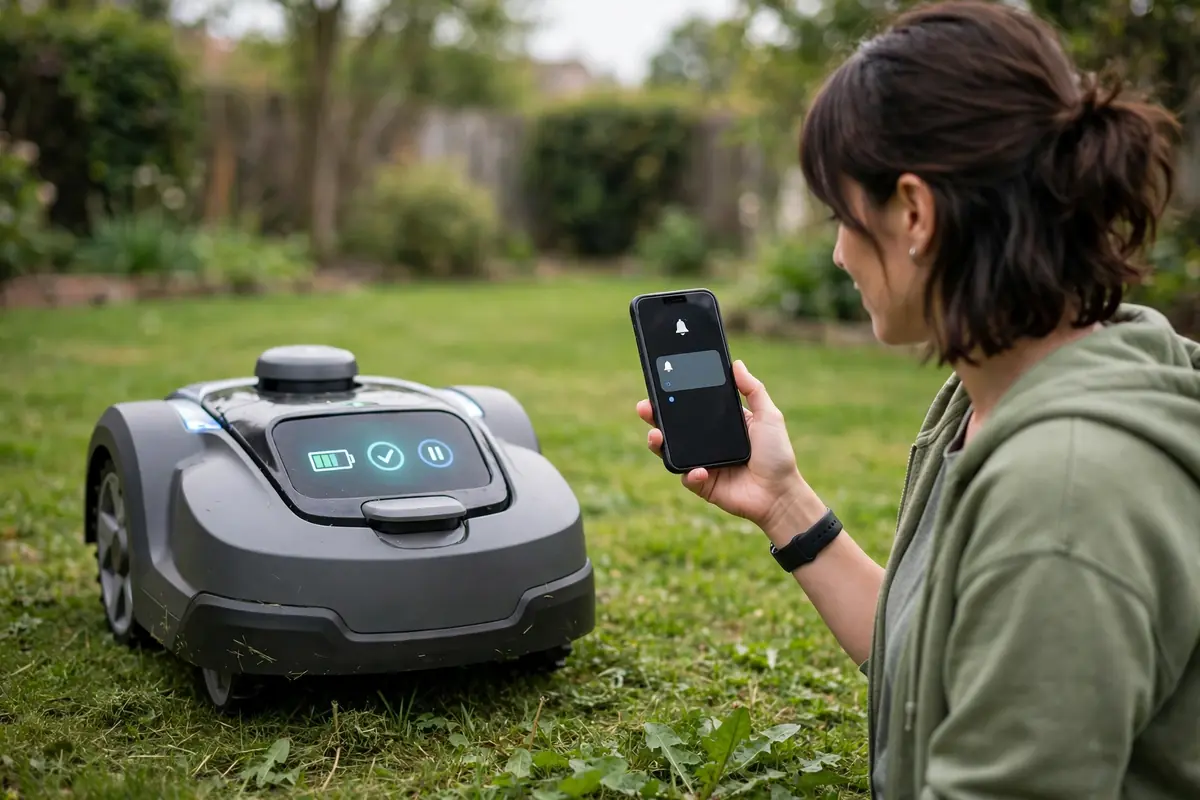
If your robot mower shows an error code, stop it safely, write down the exact code and message, note the model and what it was doing, and look up that exact code in your model’s manual or official support documentation. Do not guess its meaning from a list for another brand or model.
Most robot mower error codes are a prompt to check one system, clear a simple problem, or contact support with clear information.
What Robot Mower Error Codes Actually Mean
A robot mower fault code is a short message from the mower’s control system. It usually appears on the display, in the companion app, or in both places, sometimes with a beep or flashing light.
Think of the code as a starting point, not a complete diagnosis. It may point toward the boundary system, charging, the motor, a wheel, a sensor, the battery, or the software. It does not say which part has failed, or whether the cause is in the garden or the mower.
Some messages are warnings, not faults: a mower may pause after being lifted, detecting rain, or reaching a scheduled pause. Your manual is the only reliable way to tell the difference for your model.
The First Two Minutes: Stop Safely and Record the Message
Before you try to fix anything, make the mower safe. Follow your manual’s instructions, usually by pressing the stop button, switching it off, and disconnecting it as directed. Do not lift a running mower or reach under the deck while the blades could move.
Once it is off, record the message exactly as it appears. This is the most useful step in this robot mower troubleshooting guide, and the easiest to skip. Many owners remember that the mower “showed an error” but cannot recall the code or wording.
Write down or photograph the exact code and words, without paraphrasing them. Note whether it appeared on the mower, in the app, or both, plus the date, time, what the mower was doing, where it stopped, and the weather. If the message is in the app, take a screenshot: a mower app error notification can be replaced by a later one. Do not clear the code, reset the mower, or update the software until you have recorded it and checked the manual.
Identify Your Model Before You Look Anything Up
Error meanings, reset procedures, and safe checks vary by model, so identify your mower precisely. A brand name alone is not enough, because many brands sell several similar-looking models with different software and codes. Find the full model name and, where possible, the serial number and software version.
These are often on a label under the mower, on the original box, or in the app under settings. Check your manual for the location. Keep the mower switched off while you look underneath it.
Where to Find the Official Meaning of a Code
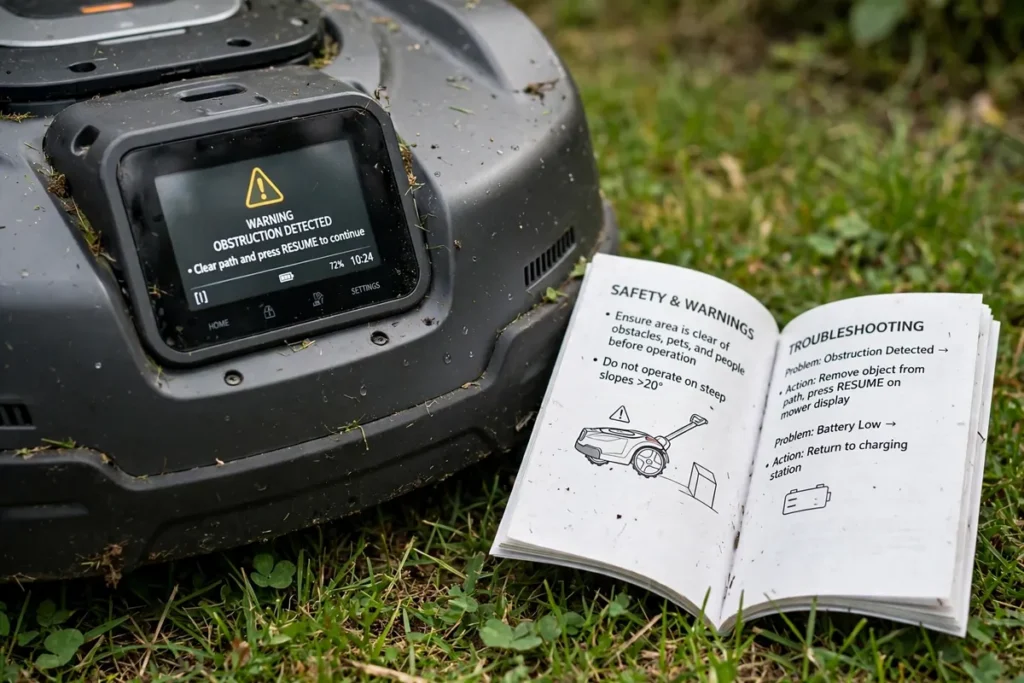
Start with the printed or digital manual supplied with the mower. Many manuals include a troubleshooting section that lists common codes, explains what each one may indicate, and gives the recommended action.
If the manual does not list your code, check the manufacturer’s official support website or app help section for your exact model. Look for a support page, a downloadable manual, or a code lookup tool. If the manufacturer offers support by phone, email, or chat, that is usually the next step.
Be cautious with unofficial sources: a forum post or video may describe a code that looks the same but belongs to a different model, and may suggest an unsafe fix. Treat unofficial advice as a prompt to check the manual. If you cannot find the code in the official documentation, tell support that you searched for your exact model and it was not listed.
Robot Mower Error Codes and the Safe Basic Checks
Once you have the official meaning, carry out the basic checks your manual allows. If a check requires opening the mower, working with the battery, or bypassing a safety feature, do not do it. Before any hands-on check, switch the mower off and disconnect it according to the manual.
Check the obvious cause first
Many robotic mower error messages follow a simple, visible cause. Is it stuck on a root, rock, hose, toy, or branch? Is one wheel lifted or pressed against a fence? Is grass wrapped around a wheel, or is the cutting disc blocked by thick, wet grass? Clear only what you can safely reach with the mower switched off.
Check the charging station and contacts
If the message relates to charging or docking, check the charging contacts only in the ways your manual allows. Look for grass, mud, or corrosion on the accessible contacts, and check whether the mower is sitting squarely on the dock. Do not open the charging station or work on mains electricity yourself. If a cable is damaged or you smell burning, switch off the power at the source if it is safe to do so.
Check the boundary, signal, and map
Some messages relate to the boundary wire, the positioning signal, or the stored map, often after garden changes or storms. Check whether the boundary wire, if your model uses one, has been cut, lifted, or disturbed by digging. For wire-free models, check whether the app map still matches the garden.
Check sensors, wheels, and the underside
With the mower switched off, inspect the accessible sensors, wheels, and underside. Wipe dust and mud from the bumper and visible sensors, using only the cleaning method your manual recommends. Check each wheel for debris or wear, and remove grass wrapped around an axle by hand. If a wheel does not turn freely, do not keep running the mower.
Check the app, connection, and software
A mower app error notification does not always mean the mower itself has a fault; the app or connection may not be working. Check whether the mower and phone are within range and whether the app shows the mower as connected. Compare the app message with the display, and record both exactly if they differ. Do not start an update while an error is active unless the manual tells you to.
When a Robot Mower Reset Helps, and When It Does Not

A robot mower reset is often suggested online as a first step, but it is not a cure for every error. A reset can help with a temporary software glitch or lost connection. It will not fix a blocked blade, damaged wheel, cut wire, faulty battery, or dirty sensor. If you reset before recording the code, you may lose the clue that would have identified the cause.
A simple restart means switching the mower off, waiting as directed, and switching it on again. A factory reset usually restores the original settings and may erase the map, schedule, zones, and error history. Do not perform a factory reset unless the manual lists it for your code, or support has asked you to. If the same error returns after a restart, do not keep resetting it.
What to Tell Support, and When to Stop Trying to Fix It
Contact support when the manual tells you to, when the code is not listed, when the same message returns after the basic checks, or when the problem involves the battery, charging system, motor, software, or a sealed part. Stop sooner if you see smoke, smell burning, or find a damaged cable or swollen battery.
Before you contact support, gather what you recorded: the brand, full model name, serial number, and software version; the exact code and wording, with a photograph or screenshot; where and when it appeared, and what the mower was doing; and what you have already checked. Keep a copy of your message and any reference number. Do not open the mower, remove a battery, or bypass a sensor unless the manual or support has told you it is safe.
A Simple Decision Table for Robot Mower Error Codes
Use this table to organise your next step, not as a diagnosis. The manual for your model always takes priority.
| What you see | What to do next |
|---|---|
| Code appears once, then clears | Record it, check the manual, and watch for a repeat. |
| Same code, same place | Check that area for an obstruction or boundary problem. |
| Same code, different places | Record each one, run the safe checks, and contact support. |
| App notification only | Save a screenshot, compare it with the display, and check the connection. |
| Charging or docking message | Check the dock and accessible contacts as the manual allows. |
| Message after rain or a garden change | Note the change, and check the area, map, or boundary. |
| Battery, motor, smoke, or damaged cable | Switch off safely, do not open it, and contact the manufacturer. |
Preventing the Same Error From Coming Back
You cannot prevent every error, but regular care can reduce messages caused by dirt, debris, and garden changes. Clean the mower as your manual recommends, including the wheels, sensors, and charging contacts. Walk the lawn for new roots, holes, and branches, and check the boundary or map after storms or planting. Keep a short log of errors, including the code, place, and weather.
Conclusion
When a robot mower shows an error code, record the exact message, identify the model, consult the official manual, carry out only the safe checks your manual allows, and contact support with clear information when the problem continues. Do not invent a meaning for a code from another model, and do not bypass a safety feature to keep the mower running.
Frequently Asked Questions
What should I do first when my robot mower shows an error code?
Switch the mower off safely, then record the exact code and wording before you clear it or restart it. Note the model, time, and what it was doing, then look up that code in your model’s manual.
Can I use an error-code list from another brand or model?
No, not as a diagnosis. The same code can mean different things on different models, and some manufacturers use words or app messages instead of numbered codes. Use only your exact model’s manual and official support information.
Will a robot mower reset fix an error code?
A restart can help with a temporary software glitch or lost connection, but it will not fix a blocked blade, damaged wheel, cut wire, faulty battery, or dirty sensor. Do not factory-reset unless the manual lists it for your code or support asks you to.
Why does the error appear in the app but not on the mower?
A mower app error notification can be a connection issue, a delayed message, or one the mower has already cleared. Save a screenshot, compare it with the display, and check the connection.
When should I contact support instead of trying more fixes?
Contact support when the manual tells you to, when the code is not listed, when it returns after the basic checks, or when it involves the battery, charging, motor, software, or a sealed part. Stop immediately if you see smoke, smell burning, or find a damaged cable.
How can I prevent robot mower error codes from coming back?
Keep the mower clean, check the wheels, sensors, and charging contacts as the manual recommends, and walk the lawn for new obstacles. Keep the charging station clear, update the map after garden changes, and keep a short log of messages.