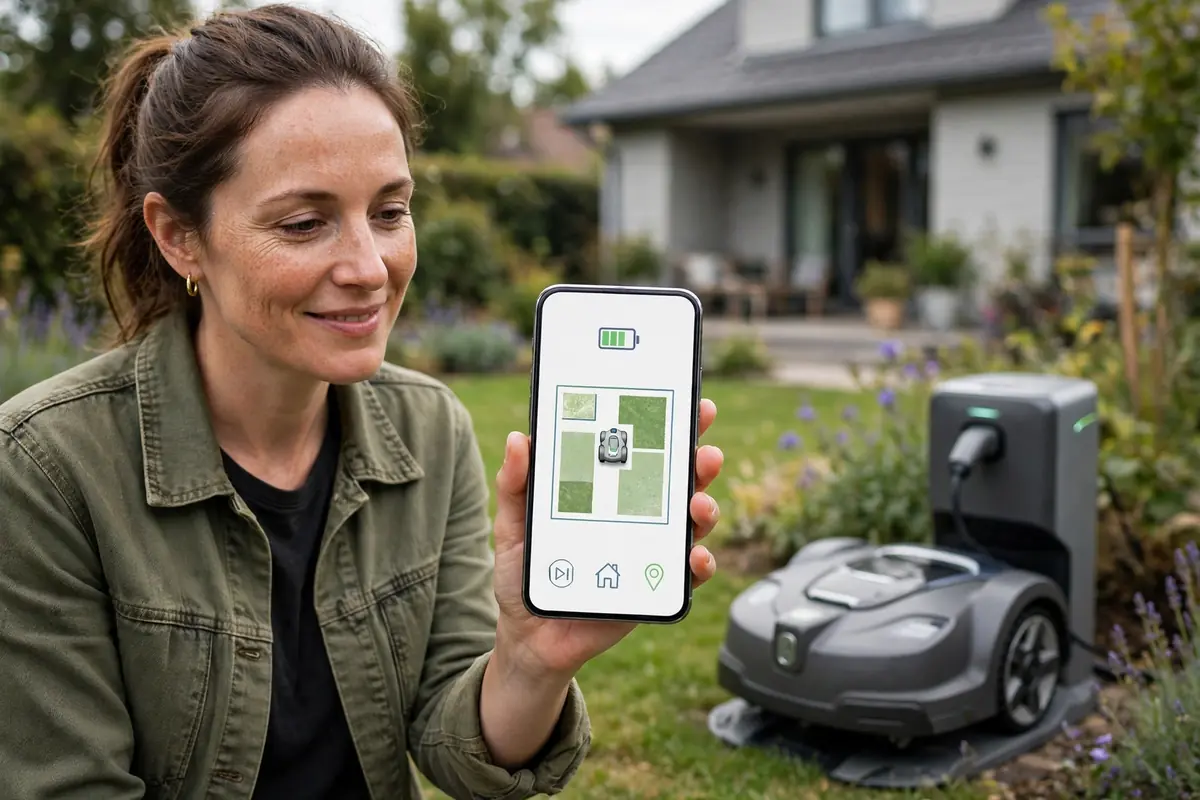
To connect a robot mower to WiFi, install the manufacturer’s official app, create an account if required, switch the mower on and put it into pairing mode, then follow the app’s prompts to join your home Wi-Fi network. Many models pair first over Bluetooth, then use Wi-Fi for remote control, schedules, and updates.
Details vary by model. Some use Bluetooth only and never join Wi-Fi. Others need a specific network band or an account first. Use this guide for the principles and your manual for the exact menus.
What the App Connection Does
A robot mower mobile app is the mower’s remote control. Once connected, it usually lets you start and stop mowing, set a schedule, change the cutting height where supported, check the battery, and receive alerts when the mower is stuck, lifted, or finished. On many models it also delivers firmware updates.
Without a connection, most mowers still mow. You can start them from a button on the mower, and they will follow their boundary or map. What you lose is remote control, scheduling, notifications, and easy updates, so sort the connection out during setup. Bluetooth is a short-range link for use nearby; Wi-Fi connects the mower to your home network for control away from home.
Before You Start
Find the right app. Search your phone’s app store for the manufacturer’s official app, using the exact name in your manual — brands sometimes have several apps.
Charge the mower. Pairing and updates need a charged battery, so leave the mower on its charging station until it has enough charge.
Stay close. Keep the mower, your phone, and your router within a few metres of each other for the first setup.
Know your Wi-Fi details. You will need the exact network name (SSID) and password, so have them written down.
Check your phone. Turn on Bluetooth and Wi-Fi, join the home network, and switch off any VPN temporarily.
Read the manual. It states the supported network bands, whether an account is needed, and how pairing works.
Which Network Band Does Your Mower Need?
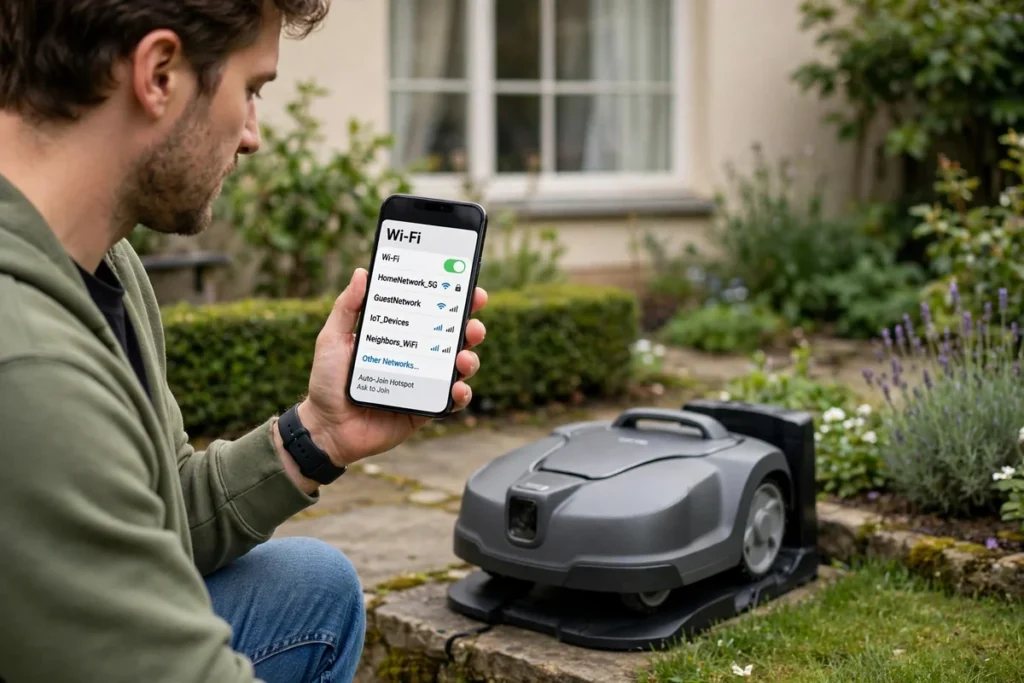
The most common stumbling block in a robotic mower WiFi setup is the network band. Home routers typically broadcast on 2.4 GHz and 5 GHz. The 2.4 GHz band reaches further through walls and across gardens but is slower; 5 GHz is faster over short distances but has a shorter range.
Many robot mowers support only 2.4 GHz. That is a design choice, not a fault: the mower needs range to reach the far end of the garden and sends only small amounts of data. If your phone is on 5 GHz during setup, the mower may not see the network at all.
Check your manual for the supported band, and connect your phone to the 2.4 GHz network for setup if needed. If your router combines both bands under one name, check its settings for how to separate them temporarily. Also check the signal at the dock: stand there with your phone and count the Wi-Fi bars. If it is very weak, move the router closer or add an outdoor-rated access point.
Connect Robot Mower to WiFi: Step by Step
The exact menus differ by brand, so treat these steps as the general sequence and follow your manual for the wording on your model.
- Install the app and create an account. Download the official app and sign up with your email address if asked. Use a strong, unique password, and switch on two-factor authentication if offered.
- Switch the mower on and enter pairing mode. Place it on its charging station or switch it on as the manual describes. Many models enter pairing mode automatically; others need a button press or a QR code scan.
- Add the mower in the app. Tap “add a device” and keep the phone within a metre or two of the mower. If it does not appear, check Bluetooth is on and the mower is still in pairing mode.
- Choose your Wi-Fi network and enter the password. If your network is missing, check the band advice above and move closer to the router. Passwords are case-sensitive, and one wrong character is the most common cause of failure.
- Wait for confirmation. The app should show a success message, and the mower may show a Wi-Fi symbol. This can take a minute or two.
- Name the mower and test it. Give it a recognisable name, finish any remaining setup steps, and send a simple command, such as asking it to return to its dock.
If setup offers a hub instead of direct Wi-Fi, follow the manual: set the hub up first and place it where recommended.
Robot Mower Bluetooth Pairing
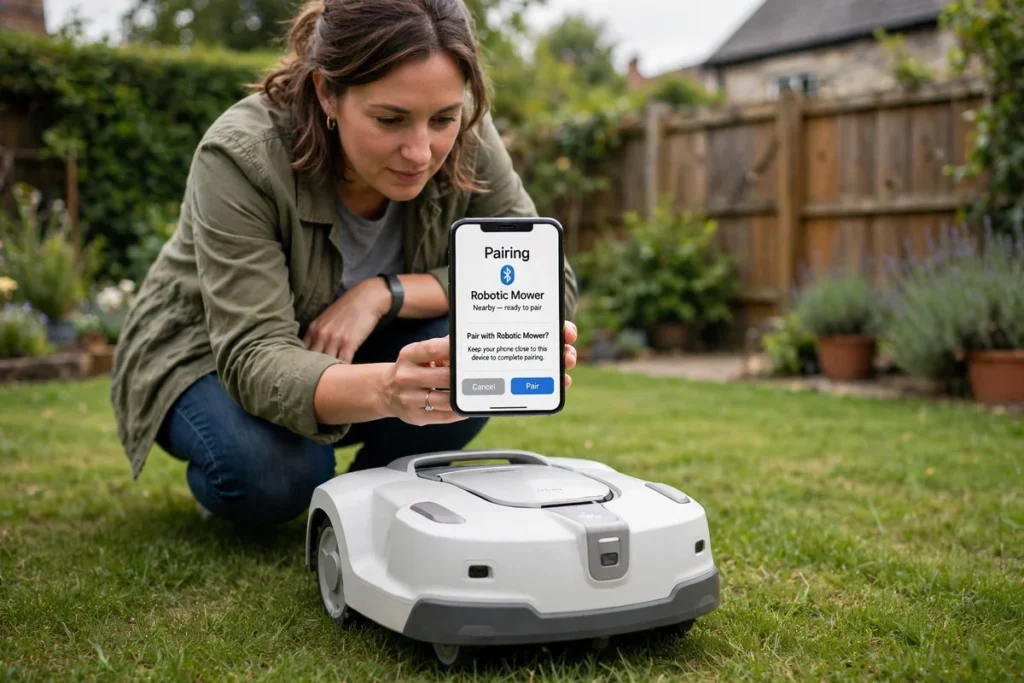
Robot mower Bluetooth pairing is often the first step, even on models that will mainly use Wi-Fi. Bluetooth carries the Wi-Fi details from your phone to the mower, because the mower has no keyboard. To pair, switch Bluetooth on, keep the phone within a few metres of the mower, and follow the app’s prompts.
Bluetooth range is short — only a few metres in a garden — and it does not pass well through walls. That is normal. If pairing fails, toggle Bluetooth, reopen the app, restart the phone, and check the mower is not already paired with another device. Some models use Bluetooth only, so check the manual before you buy if remote access matters.
Accounts, Permissions, and Privacy
An account links the mower to you, so the app knows which mower to control and how to reach you with notifications. It also enables security features on many models, such as an alert if the mower is lifted and a PIN lock that makes a stolen mower harder to use.
Download the app only from your phone’s official store, and create an account only through the app or the manufacturer’s website. If you buy a second-hand mower, ask the previous owner to remove it from their account first. Check which permissions the app requests — location is commonly needed to find Bluetooth devices — and change them one at a time if needed.
Firmware Updates and Checking the Connection
A firmware update is software for the mower itself, distinct from an update to the phone app. Many mowers can only receive firmware over Wi-Fi. After connecting, check for updates, but do not start one at a busy moment: make sure the mower is charged and the signal is steady, and never install firmware from an unofficial source.
Then test the connection. Send a command from beside the mower, then from inside the house; it should respond in both cases if it is on Wi-Fi. Test remote access once by switching your phone to mobile data. If it only works at home, the mower may be on Bluetooth only. If everything works, leave the setup alone: renaming the network or changing its password will usually disconnect the mower.
Fixing Common Connection Problems
Most robot mower connectivity problems have a small number of causes. Work through them in order, testing after each change.
| Problem | Likely cause | What to try first |
|---|---|---|
| Mower does not appear in the app | Bluetooth off, mower not in pairing mode, or already paired elsewhere | Check Bluetooth, restart pairing mode, move the phone closer, restart the phone |
| Wi-Fi network not listed | Wrong band, weak signal, or hidden network name | Use the 2.4 GHz network, move closer to the router, enter the name manually |
| Password rejected | Typo or wrong network | Re-enter the password carefully and confirm the network name |
| App says the mower is offline | Weak Wi-Fi at the dock, mower off, or router problem | Check the signal at the dock, restart the mower and router |
| Connection drops outdoors | Signal too weak at the far end of the garden | Test the signal at the dock; consider repositioning the dock or adding outdoor-rated coverage |
| App works at home but not away | Bluetooth-only link, or no account set up | Check whether the model supports remote access and sign in to the account |
A restart solves more connection problems than any other step. Restart the mower, the app, and the router — switching the router off for about thirty seconds — then wait a few minutes for the router to come back fully.
If a step still fails, note the exact message and the mower’s model number before contacting support. Do not open the mower or modify its antenna; that can void the warranty and create a safety risk.
Safety Notes for Connected Mowers
Keep the mower’s safety features switched on, including any PIN lock and lift sensor, and never bypass them to make setup easier. Before starting the mower from the app, check that children and pets are clear of the lawn, especially if you are not at home. Switch the mower off as the manual directs before lifting it or working near the blades, keep the charging station dry, and do not run cables where the mower can cut them.
Contact the manufacturer’s support team if the mower will not appear in the app, an error cannot be cleared, or a firmware update keeps failing. Have the model number, serial number, app version, and phone model ready.
Conclusion
Connecting a robot mower to Wi-Fi and its app is mostly preparation: the right app, a charged mower, the correct network band, and the exact Wi-Fi password. Pair over Bluetooth where your model uses it, join the home network, and test the connection. When something fails, check band, password, signal, and pairing mode first — they cover most cases.
Frequently Asked Questions
Do all robot mowers need Wi-Fi?
No. Some models connect to home Wi-Fi for remote control and updates, some use Bluetooth only and work only when you are nearby, and a few use a hub connected to your router. Check your model’s manual to see which type it supports.
Why won’t my robot mower connect to my Wi-Fi?
The most common reasons are the wrong network band, a mistyped password, a weak signal at the charging station, or the mower not being in pairing mode. Check that your model supports the band you are using — many need 2.4 GHz — re-enter the password, and move closer to the router for setup.
Can I connect a robot mower to Wi-Fi without the app?
Usually not. Most manufacturers design setup around their own app, which passes the network details to the mower over Bluetooth. Some models allow limited setup from a display on the mower, but the app is normally required for Wi-Fi setup, schedules, and updates.
Does a robot mower need Wi-Fi to mow?
No, most robot mowers will still mow without Wi-Fi, using their boundary, map, or schedule stored on the mower. Without a connection you usually lose remote control, notifications, and easy firmware updates, and you will need to start the mower from its own controls.
How do I reconnect my robot mower after changing my Wi-Fi password?
Changing the Wi-Fi password or network name usually disconnects the mower. Open the app, remove the mower’s old connection if the app offers that option, put the mower into pairing mode following the manual, and run setup again with the new details.
Is it safe to control my robot mower from the app when I am away from home?
It can be, with a few precautions. Use a strong, unique password for the mower account, switch on two-factor authentication if offered, and only start the mower remotely when you are confident the lawn is clear of children, pets, and obstacles. Never bypass the mower’s safety features.